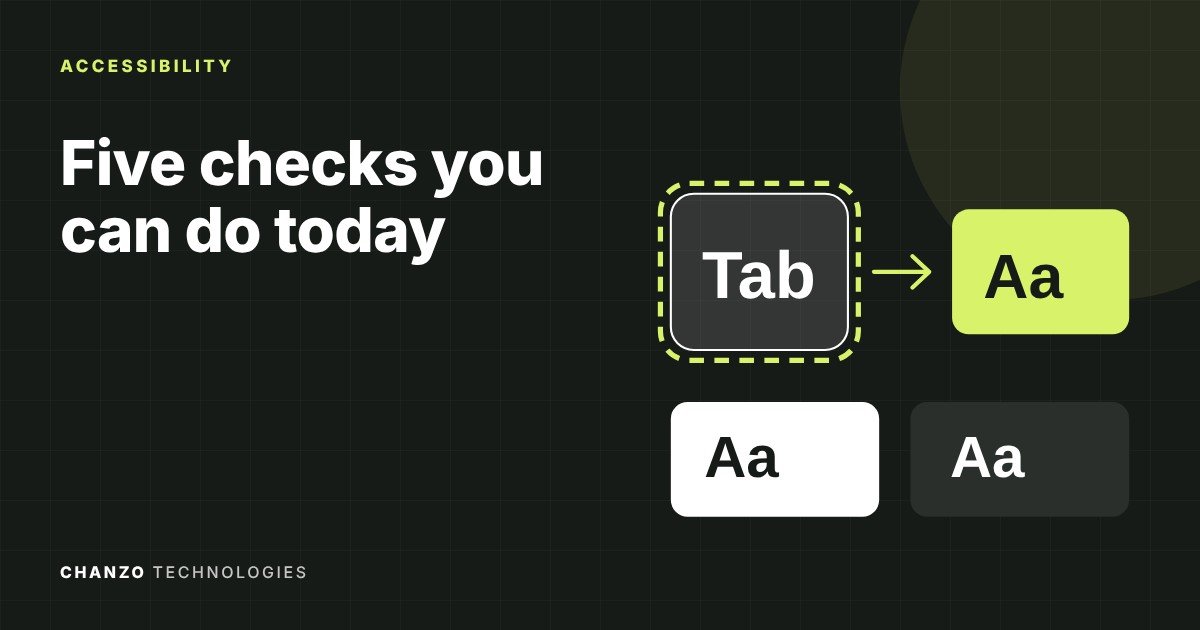
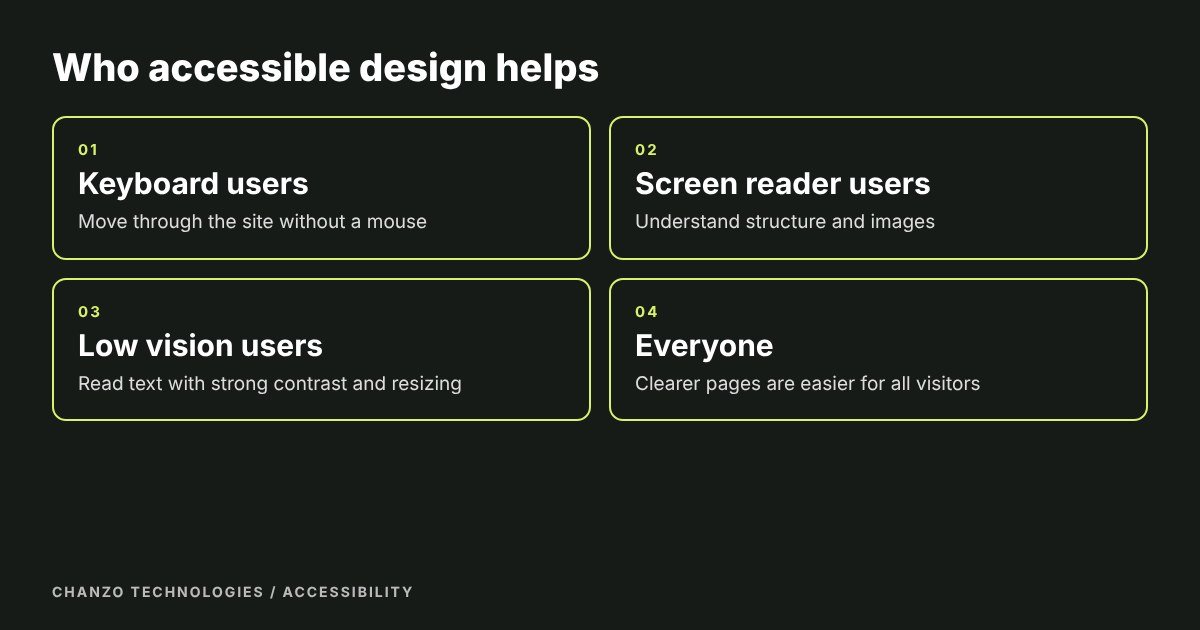
Accessible websites are easier for everyone to use, including people who rely on keyboards, screen readers or larger text. They are also easier to use on a phone, in bright sunlight or with a slow connection. These five accessibility checks do not need special tools, and you can do them in about fifteen minutes. They will not make a site perfect, but they find the problems that block the most visitors.
Why accessibility matters for a small business
An inaccessible website quietly turns customers away. Someone who cannot operate your booking form or read your hours will go to a competitor, and you will never know. Accessible pages are also clearer pages, with better structure for search engines and a smoother experience for every visitor.
There is a legal side too. Ontario’s accessibility laws, including the AODA, set requirements for businesses and organizations, and which ones apply to you depends on your size and situation. The Government of Ontario explains the framework and offers a self-assessment at Accessibility in Ontario. This article is not legal advice, so check what applies to your business.
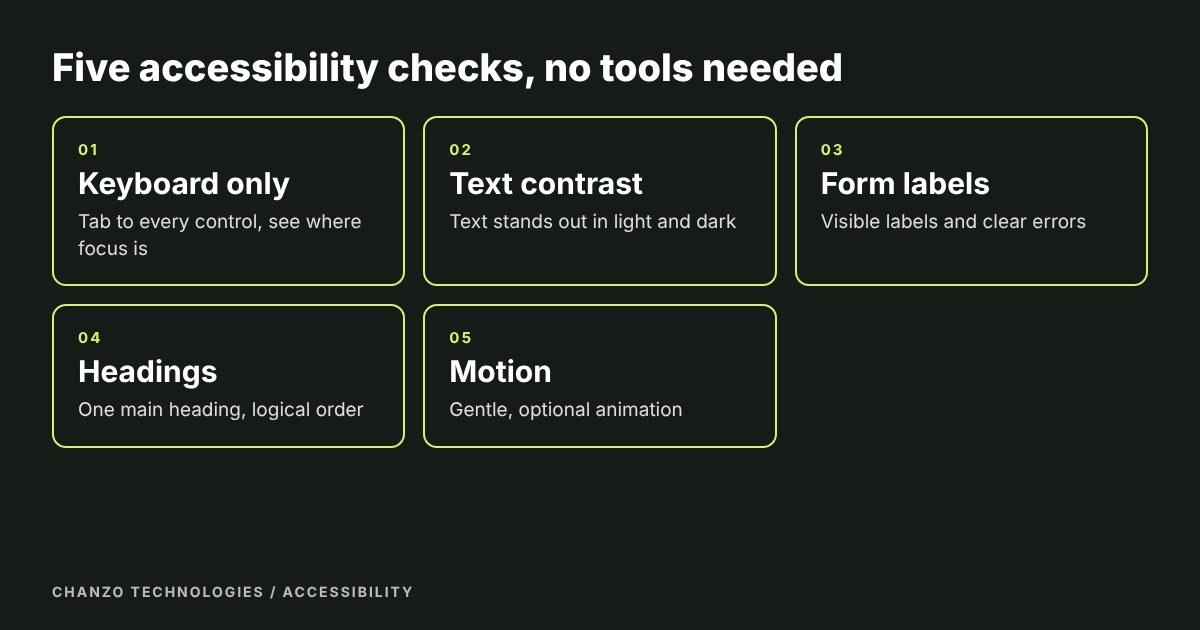
1. Use only the keyboard
Press Tab to move through the page. You should always see where focus is, reach every link, button and form field, and be able to open and close menus without a mouse. Use Shift+Tab to go back and Enter or Space to activate things.
What to look for: a visible outline or highlight on the focused item, a logical order, and no point where you get stuck.
How to fix it: never remove the focus outline without replacing it with something equally visible, and use real buttons and links rather than clickable boxes.
2. Check text contrast
Text should stand out clearly from its background, including in dark mode. Light grey text on white is a common problem. Free contrast checkers show whether a colour pair meets WCAG guidelines. The W3C’s quick reference lists the success criteria, including the minimum contrast levels (How to Meet WCAG).
What to look for: pale text, text over photos, button labels and placeholder text.
How to fix it: darken the text or lighten the background, and put a solid panel behind text that sits on an image.
3. Label every form field
Each field needs a visible label, not just placeholder text that disappears when you type. Error messages should say what went wrong in plain words and appear next to the field. Forms are where customers become enquiries, so a barrier here costs real money.
What to look for: fields with no label, vague errors such as “invalid input”, and required fields that are not marked.
How to fix it: add a label to each field, mark required ones, and write errors like “Enter an email address, for example name@example.com”.
4. Review your headings
Use one main heading per page and nest the rest in order. Screen reader users often jump between headings to scan a page, so they work like a table of contents. Do not choose a heading level because of how big it looks. Choose it for its place in the outline.
What to look for: pages with several main headings, skipped levels, or bold text that looks like a heading but is not marked as one.
How to fix it: set the correct heading levels in your editor and use styling for appearance.
5. Respect motion preferences
Animations should be gentle and optional. Sites should reduce or remove movement for visitors who set their device to prefer reduced motion. Moving, flashing or auto-playing content can distract or cause discomfort. Nothing should flash more than three times in a second.
What to look for: auto-playing carousels, videos that start on their own and large moving backgrounds.
How to fix it: let users pause moving content, avoid autoplay and honour the reduced motion setting.
How to run these accessibility checks in 15 minutes
- Pick your home page, your most important service page and your contact page.
- Run the five accessibility checks above on each one and write down what fails.
- Rank the problems by how many visitors they block. A form you cannot use with a keyboard comes before a slightly pale caption.
- Send the list to your web designer, or fix the simple items yourself.
- Repeat after any redesign or major update.
Bonus checks that take two minutes each
- Alt text: images that carry meaning have a short description, and decorative ones are marked as decorative.
- Page titles: each page has a distinct, descriptive title.
- Zoom: enlarge text to 200% and check the page is still usable.
- Link text: avoid “click here”. Use words that say where the link goes.
The W3C’s Easy Checks guide covers these and more in a non-technical way, and it is clear that it is a first review, not a full evaluation.
Next steps
Automated tools such as axe can catch many issues, but they cannot catch everything. Combine them with these manual checks and with real users whenever possible. If you are launching or rebuilding a site, add accessibility to your website launch checklist so it is checked every time, and ask your designer how they build for it. We do, as part of our web design and development work.
Frequently asked questions
Do small businesses need an accessible website?
It helps every visitor, and some businesses have legal obligations under Ontario’s accessibility rules. See the Government of Ontario’s guidance and, if unsure, ask a qualified adviser.
Can an automated tool make my site accessible?
Tools find many problems, but they miss others, and “overlay” widgets do not replace building the site properly. Use tools and manual checks together.
What is WCAG?
The Web Content Accessibility Guidelines, published by the W3C, are the widely used standard for accessible web content. The quick reference linked above helps you find the criteria that matter.
How often should I check?
Whenever you add a page, change the design or add a new form, and at least once or twice a year.
Is accessibility expensive?
It costs far less when it is built in from the start. Fixing a finished site takes longer, which is why it belongs in the design brief.
Need a hand?
Chanzo Technologies is a small business digital agency in Burlington. If you would like an accessibility review of your site, get in touch.