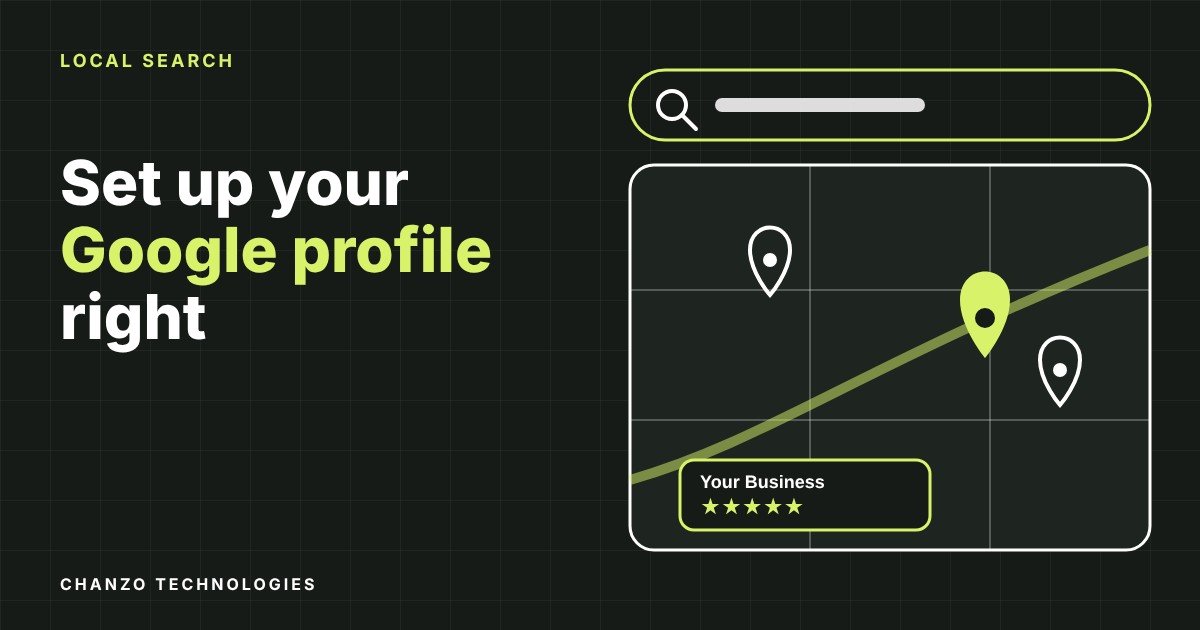
If a customer in Burlington searches for a plumber, a bakery or an accountant on their phone, the first thing they often see is a map with a handful of businesses beneath it. Those listings come from Google Business Profiles. This Google Business Profile setup checklist walks you through filling yours in properly, so the people who find you see accurate details and a business that looks ready for work.
It is free to set up, it takes an afternoon, and no one can promise it will put you in a particular position. What you can control is whether your profile is complete, accurate and kept up to date. That is what this guide covers.
Why your Google Business Profile matters for a local business
Your Google Business Profile is the listing that appears in Google Maps and local search results. It shows your name, address, hours, phone number, website link, photos and reviews, all in one place. For many local searches, it is the first impression a customer gets, before they ever visit your website.
Google’s own help pages say that keeping your business information complete and accurate helps your profile show up in relevant local searches (Google Business Profile Help: edit your business information). In plain terms: a half-finished profile gives Google and customers less to work with.
Before you start: what to gather
Have these ready so you can finish in one sitting. This is the foundation of any Google Business Profile setup checklist:
- Your exact business name as it appears on your signage, invoices and website.
- Your street address, or the area you serve if you travel to customers.
- A phone number you answer, and your website address.
- Regular hours, plus any holiday hours you already know.
- A short list of the services or products you actually sell.
- Ten or more clear photos of your space, team, vehicles or finished work.
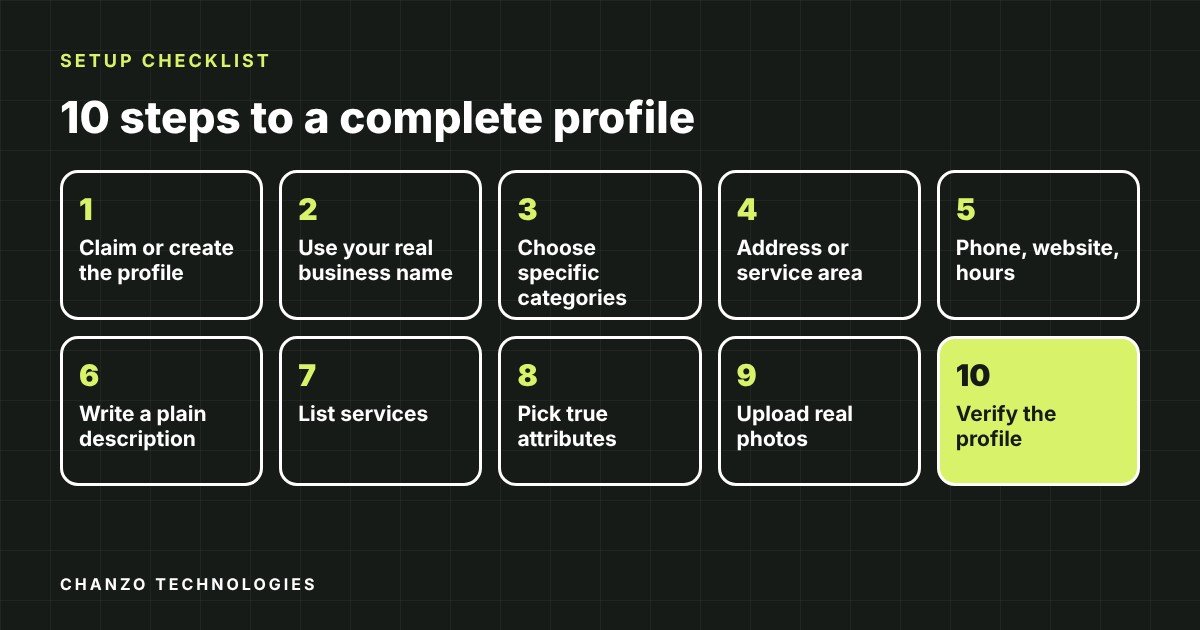
The Google Business Profile setup checklist, step by step
Work through these in order. Skipping a step is how most profiles end up looking thin.
1. Claim or create the profile
Search for your business name on Google while signed in to the account you want to own the listing. If it already exists, claim it. If not, add it. Use an account the business controls. If you ever take over a profile from someone else, Google’s guidelines explain that the current owner needs to add you as an owner and then transfer ownership to you.
2. Get the business name right
Use your real-world name, the one customers see on your sign. Google’s guidelines for representing your business ask for accurate, consistent details, and a name stuffed with extra keywords or a city can cause problems. “Lakeshore Plumbing” is fine. “Best Cheap Plumber Burlington Ontario 24 Hour” is the kind of name that gets edits suspended.
3. Choose the right categories
Pick one primary category that describes your main business, then add a few secondary categories for other services you genuinely offer. Be specific. “Electrician” beats “Contractor” if wiring is the work you want. Do not add categories for services you do not provide, because it attracts the wrong enquiries.
4. Enter your address or service area
If customers visit you, enter your street address. If you go to them, as most tradespeople do, set a service area instead and hide your address. For a Burlington business, that might list Burlington, Oakville, Milton and Hamilton. Keep it to places you will really drive to, and keep the same address wording you use on your website and invoices.
5. Add phone, website and hours
Use a direct local number, ideally the same one shown on your website. Link to the page you want customers to land on. For a single location that is usually your homepage, though a location or booking page can work too. Then set your regular hours. If you close on statutory holidays or run seasonal hours, add special hours so no one turns up to a locked door.
6. Write a clear business description
Use the description field to say what you do, who you serve and where, in plain words. Two or three short sentences are enough. Mention Burlington and the nearby areas you cover where it is natural. Skip the all-caps and any promise you cannot back up.
7. List your services and products
Add each service with a short description, and a price or price range if you are comfortable sharing it. This is where a customer decides whether you do what they need, so be as specific as you can.
8. Choose attributes that fit
Attributes are the small details customers filter by: wheelchair accessible entrance, free parking, online appointments, women-led, outdoor seating and similar. Only tick what is true today. Our quick accessibility checks are a useful starting point if you are unsure about your own premises or website.
9. Upload real photos
Add a logo, a cover photo, photos of the outside so people recognise the building, a few of the inside or your team, and plenty of finished work. Use your own photos, not stock images. Good phone pictures in daylight are enough. Customers can tell the difference.
10. Verify the profile
Google usually asks you to confirm that you are the real owner before the listing is fully active. The method offered depends on your business and may include a phone call, text, email or video. Finish verification the same day if you can.
Reviews: ask the right way and reply to every one
Reviews appear right beside your listing, so they shape how people see you. Google’s help page on reviews notes that you can share a review link or QR code with customers, and that replying thoughtfully to feedback shows people you pay attention (Google Business Profile Help: read and reply to reviews).
A few ground rules keep you on the right side of Google’s policies:
- Ask every happy customer, ideally just after the job is done, using your review link.
- Never offer discounts, gifts or payment in exchange for a review.
- Do not edit reviews or pressure people to remove a bad one.
- Reply to negative reviews politely, quickly and without private details. Apologise where it is fair and offer to talk offline.
- If a review breaks Google’s rules, report it rather than arguing in public.
Keep your Google Business Profile current after setup
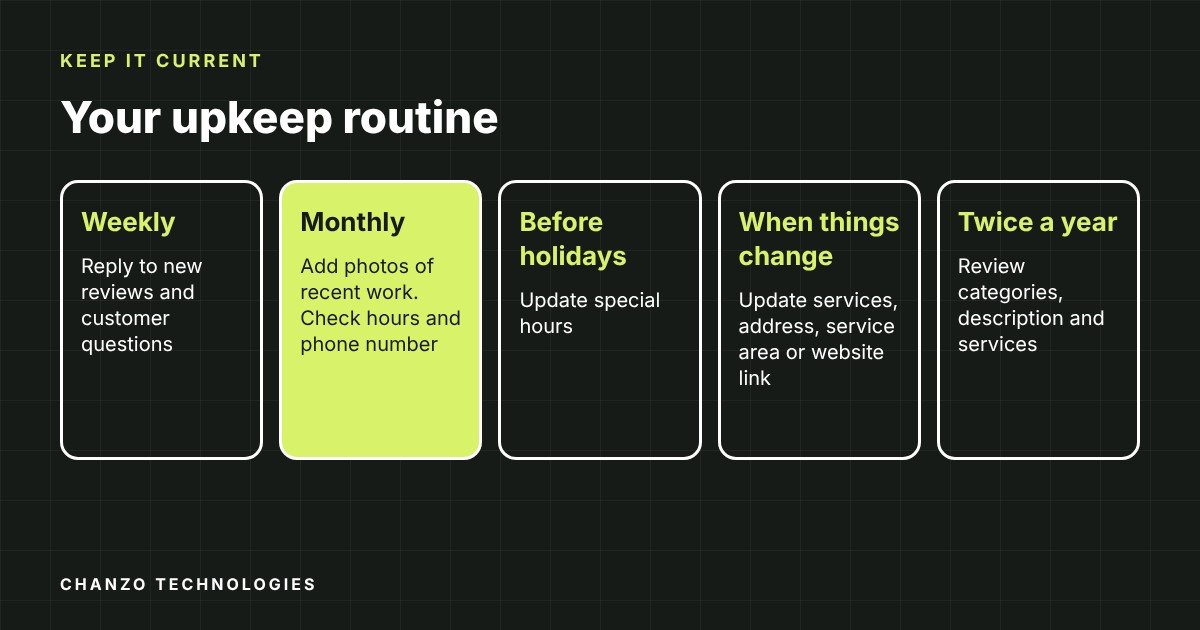
Treat your profile as a living page, not a one-time job. If you only do three things each month, check your hours, add a few fresh photos and reply to new reviews.
| How often | What to do |
|---|---|
| Weekly | Reply to new reviews and answer any customer questions |
| Monthly | Add new photos of recent work, check hours and phone number |
| Before holidays | Update special hours so customers know when you are open |
| When something changes | Update services, address, service area or website link the same week |
| Twice a year | Review categories, description and services for anything out of date |
Common mistakes to avoid
Most problems come from the same slips. Stuffing the business name with keywords or a city. Listing a home address you meant to keep private. Letting a former employee, friend or web designer remain the only owner. Using a different phone number than your website. Leaving holiday hours blank. Duplicate listings for the same location, usually left over from an old move or rebrand.
If you find a duplicate, do not create a third. Claim the correct one and ask Google to handle the extras through the help pages.
Make your website match your profile
Your profile and your website should tell the same story. Customers who click through from the map want to find the same name, address, hours and services, in a layout that works on a phone. If they land on an out-of-date page, you lose them.
If your site needs work, our Burlington small business website guide covers what a local site should include, and our breakdown of website costs in Ontario explains what to expect to pay. You can also read about our SEO services and our web design and development work.
Frequently asked questions
Is a Google Business Profile free?
Yes. Creating and managing a Google Business Profile does not cost anything.
Can I have a profile if I work from home or travel to customers?
Generally yes. If you serve customers at their location, set a service area and hide your home address. If customers never visit you at a physical place, you do not need to show a street address publicly.
How long does verification take?
It depends on the method Google offers your business. Some options are quick and some take days. Complete the steps as soon as you receive them, and make sure the details you entered match what is publicly visible about the business.
Will completing every field guarantee I show up first?
No. Nobody can guarantee a position in Google results. A complete, accurate, active profile gives Google and customers the information they need, and that is the part you control.
Do I still need a website if I have a profile?
Yes. A profile is a starting point, but your website is where customers learn more, compare you and contact you. The two work best together, with matching details on both.
Next steps: finish your profile, then check your website
Set aside an hour this week and put a reminder in your calendar for the first of each month. Once your Google Business Profile setup checklist is done, look at the page customers land on when they click your website link. If it is slow, outdated or hard to use on a phone, that is the next fix.
Chanzo Technologies builds websites for local businesses in Burlington, Halton, Hamilton and Mississauga. You can get a fixed-price website for $500 (CAD plus tax, one-time), or join our Free Build membership: a custom website with no build fee, then CAD 349 per month (Growth) or CAD 500 per month (Partner, which adds ongoing SEO) for 12 months, hosting and domain included, plus tax. Get in touch and we will help you pick the option that suits your business.